
Cozy Game Restoration Guide: Cleaning, Shelving, Decor
This cozy game restoration guide walks through the demo after cleaning: shelf nodes for cartridges, the wall paint node for wallpaper, and ending the day.
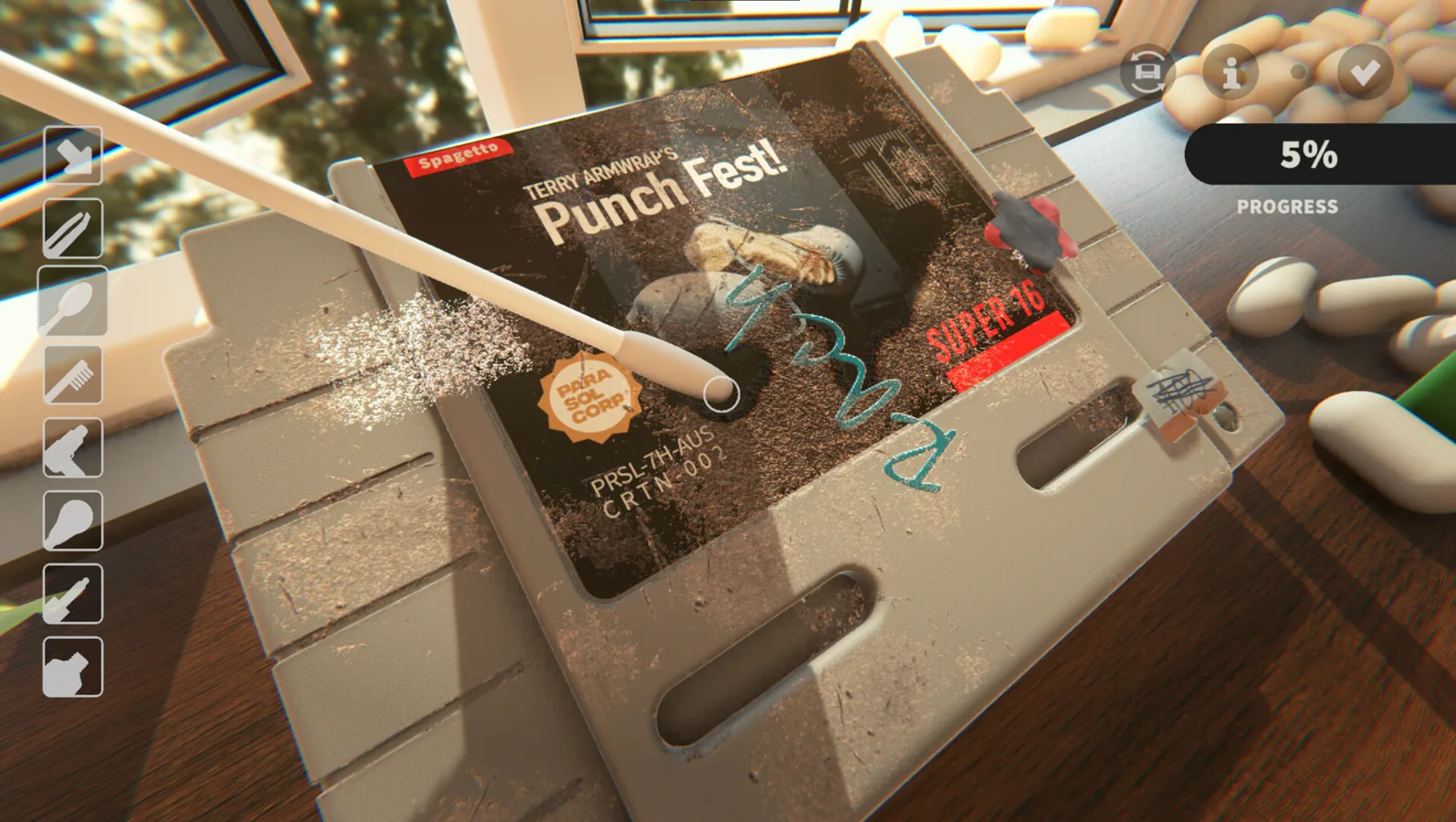
This cozy game restoration guide answers the question that keeps coming up in the Steam discussions for the current demo: what do you do after a cartridge is clean? The quick version is that you click the nodes on the shelf to place games, you click the little paint node in the centre of the wall to change wallpaper, and you click the door to end the day. This cozy game restoration guide covers the demo only and will be updated when the full game releases, which the official Steam store page lists as November 4, 2026.
After Cleaning: Placing Cartridges on the Shelf
When a cleaning session is finished, the next step in this cozy game restoration guide is the collection room. In a Steam Community thread from October 3, 2026, a player reported that the shelf tutorial glitched out, moving a label around with no cartridge, and that the game was missing after reloading the room.
The developer answered that you can click the nodes on the shelf to see your games and drag them or just select them to put them on. He added that greyed out nodes would be a big bug, so if your nodes are greyed out, report it in that thread rather than assuming you missed a step. The developer also acknowledged that the tutorial text tells players to drag instead of clicking a node, and said he might highlight the points or add a menu for games to make the flow more obvious.
| Step | What to do | Notes |
|---|---|---|
| 1 | Finish the cleaning tutorial and close the game | The how to play screen is shown after the October patch |
| 2 | Open the collection room | The tutorial text mentions dragging a cartridge |
| 3 | Click a node on the shelf | This shows your games so you can pick one |
| 4 | Drag or select the game to place it | Greyed out nodes are a bug to report |
Changing the Wallpaper and Decorating the Room
The other half of the tutorial covers the display room. A player reported being stuck on the change decoration step on October 3, 2026: clicking the small dots opened a menu with only one empty square, and dragging that item toward the wall showed a red cube with the word error on top. The developer's answer in that thread is the key wallpaper trick: for the wallpaper you click the little paint node in the centre of the wall to change it. He explained that each point knows what type of item needs to be there and acts like a filter, which is why the wall expects a wallpaper item and the shelf expects games.
The player later wrote they would restart the game to see if the wall node fixed itself, so a restart is the community-tested first thing to try when a node misbehaves. The same wallpaper thread has a bonus tip: players experiencing wrist fatigue can enable the continuous clean toggle in the input options or by pressing Tab.
| Situation | What players saw | Developer guidance |
|---|---|---|
| Wallpaper picker | One empty square in the menu | Use the paint node in the centre of the wall |
| Dragging to the wall | Red cube with error on top | Click the wall paint node instead of dragging |
| Shelf tutorial | Label moving with no cartridge | Click shelf nodes; greyed out nodes are a big bug |
Ending the Day and Managing Demo Money
A player who reached the third day reported two problems in an October 2, 2026 thread. First, it took them ages to figure out that they had to click the door, normally an exit icon, to get to where they could end the day, and the developer said he added an exit button on the main menu in a previous patch. Second, they had upgraded to three packages per day, ended the day, and found only one parcel showing up at nearly $100 while their collection was worth only $30.
This part of the cozy game restoration guide covers the money trap that caused it. The developer explained that package upgrades are intentionally very expensive and designed as a massive sink, and that the demo is limited to 3 days and 7 games. In Demo Patch 4, posted on October 4, 2026, the developer locked down upgrades so players now see them at about $9999, which prevents spending the demo money on upgrades instead of games. For saves made before that patch, the developer's advice was to jump on a new save and skip to the last day, because he could not think of a way to undo the upgrade slots.
| Situation | Likely cause | What changed |
|---|---|---|
| One $100 parcel after ending a day | Demo money spent on package upgrades | Patch 4 locks upgrades at about $9999 |
| Collection worth less than the next parcel | Prices scale beyond demo funds | The demo ends after 3 days and 7 games |
| No visible end day option | The door is the end day trigger | Exit button added to the main menu earlier |
Tutorial Changes in the October Patches
The tutorial is not the same as it was at the demo launch, and older advice about it is outdated. Demo Patch 3 split the game into two tutorials so finishing the first tutorial stops it from being shown again, and the collection room now has a popup showing more info on how the game room works at the end. Demo Patch 4 then split the tutorial up further so you can finish the cleaning of the game separately from customizing the collection room, and the developer now also shows the how to play screen.
That same patch reworked placement of furniture on the customisation screen to stamp out an issue where some players could place games on the walls, plants on the shelves, and duplicate games. The known issues that remained after Patch 4 are more localisation plus a language selection menu, furniture rotation, and a windowed mode toggle that is buggy for some players, and autocomplete is still disabled. Because of these changes, this cozy game restoration guide does not repeat the old advice that you must complete every tutorial step in order or restart your save, since the split tutorials and the upgrade lock address those problems.
| Patch | Posted | Change relevant to this guide |
|---|---|---|
| Demo Patch 1 and 2 | October 2, 2026 | Autocomplete disabled for being overpowered |
| Demo Patch 3 | October 3, 2026 | Two tutorials; collection room popup explains the game room |
| Demo Patch 4 | October 4, 2026 | Cleaning and room tutorials split; how to play screen shown; upgrades locked near $9999 |
What This Cozy Game Restoration Guide Does Not Know Yet
The store page describes the full game as having 108 distinct titles inspired by classics from the 1980s to early 2000s, with grime layered so dust, ink, discoloration, stickers, and scratches each require a different tool, and with no timer and no fail state. Those features describe the game the developer is shipping, not the current demo, which is limited to 7 games across 3 in-game days. This cozy game restoration guide therefore only covers the demo, and everything about the full game stays unreleased until the November 4, 2026 release date arrives. The facts on this page come only from the official Steam store page, the developer's patch notes, and the Steam Community threads linked above.
FAQ
Where do I put a cartridge after cleaning?
Click the nodes on the shelf in the collection room to see your games, then drag or select one to place it. Greyed out nodes are a bug to report, not a step you missed.
How do I change the wallpaper?
Click the little paint node in the centre of the wall. Each point knows what type of item needs to be there and acts like a filter, which is why dragging an item at the wall showed a red cube with the word error for one player.
How do I end the day in the demo?
Click the door, which normally looks like an exit icon. The developer also added an exit button on the main menu in a previous patch, so check that Steam downloaded the update if you cannot see it.
Does this cozy game restoration guide apply to the full game?
No. It covers the demo only and will be updated when the full game releases on November 4, 2026. Upgrade prices and tutorial steps may change again before then.
Related Articles
Continue Reading
Controls: Demo Save and Window Fixes
Get the latest demo answers for cozy game restoration controls, including Tab toggle, save and quit, and windowed mode troubleshooting before the launch.
GuidesHow to Clean Stubborn Demo Marks
Learn cozy game restoration how to clean residual scratches and ink in the demo, use the UV glowing trail, and check what may stall completion. Demo only.
DemoDemo: Three Days, Seven Games
The cozy game restoration demo spans three in-game days and seven games. Learn what ends the demo, what counts as a bug, and how the full game will differ.